
Configure your Webhook
Learn how to set up OpenPath webhooks in the OpenPath Back Office to send real-time event data to your application. This guide covers creating an outgoing webhook subscription, adding an endpoint URL, assigning connected sites, saving the configuration, and testing JSON payload delivery using tools like Webhook.site, Postman, curl, or ngrok.
Setting Up OpenPath Webhooks
This guide explains how to configure an outgoing webhook in the OpenPath Back Office.
What is a Webhook?
A webhook is a way for one system to send real-time information to another system when a specific event occurs.
Instead of requiring your application to repeatedly check an API for updates, a webhook automatically sends data to your configured endpoint as soon as the event happens. This makes webhooks more efficient than traditional polling because information is delivered immediately without unnecessary repeated API calls.
Webhooks are sometimes called “reverse APIs.” With a traditional API, your system sends a request to another service to retrieve data. With a webhook, OpenPath sends an HTTP request to your system when there is new information to share. Your application is then responsible for receiving, validating, and processing that request.
Consuming the OpenPath Webhook
To consume OpenPath webhooks, you must provide OpenPath with a publicly accessible URL where webhook requests should be delivered.
This URL is configured in the OpenPath Back Office. Once configured, OpenPath will send webhook event data to your endpoint using an HTTP POST request.
The webhook payload is sent in JSON format. Your application will need to receive the request, parse the JSON payload, and take the appropriate action based on the event.
Before You Begin
Before configuring a webhook, make sure you have:
- Access to the OpenPath Back Office.
- A publicly accessible endpoint URL that can receive HTTP
POSTrequests. - An application or service ready to process JSON webhook payloads.
- At least one OpenPath site that should trigger webhook events.
NoteIf your endpoint is not ready yet, you can use a service such as Webhook.site to generate a temporary test URL and inspect the webhook payloads sent by OpenPath.
Debugging Webhooks
Debugging webhooks can be difficult because webhook requests are event-driven and asynchronous. In most cases, you need to trigger an event, wait for the webhook to fire, and then inspect the request received by your endpoint.
A good webhook testing workflow is:
- Capture webhook requests using a tool such as Webhook.site.
- Review the JSON payload sent by OpenPath.
- Mock or replay requests using a tool such as Postman or
curl. - Use a tool such as ngrok if you need to test against a local development environment.
Setting Up a Webhook
Follow the steps below to create an outgoing webhook subscription in the OpenPath Back Office.
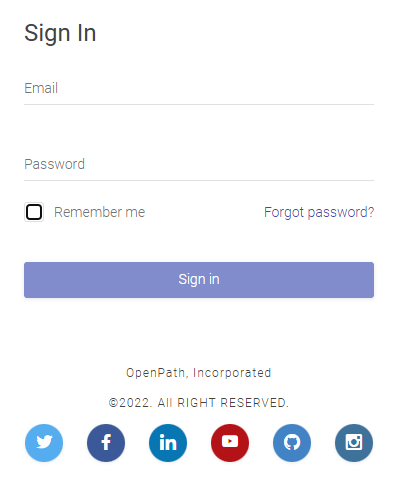
Step 1: Log In
Log in to your OpenPath account: https://client.openpath.io
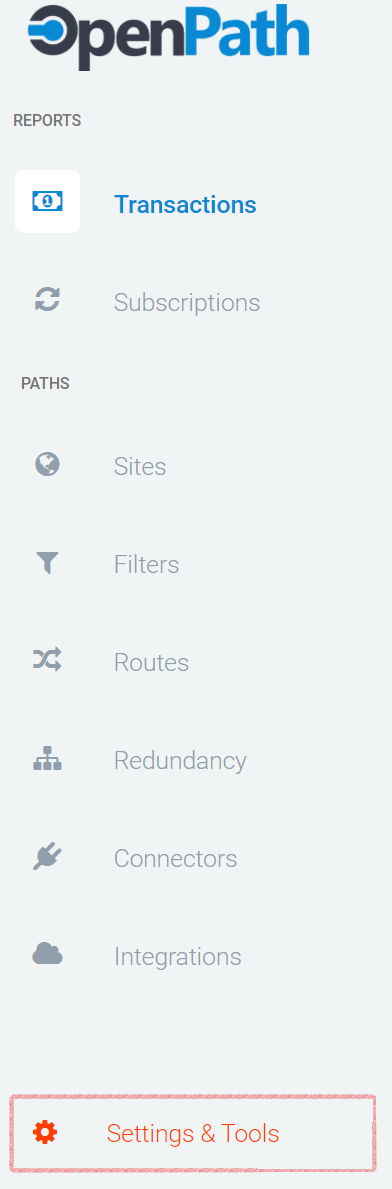
Step 2: Open Settings & Tools
From the left navigation menu, select Settings & Tools.
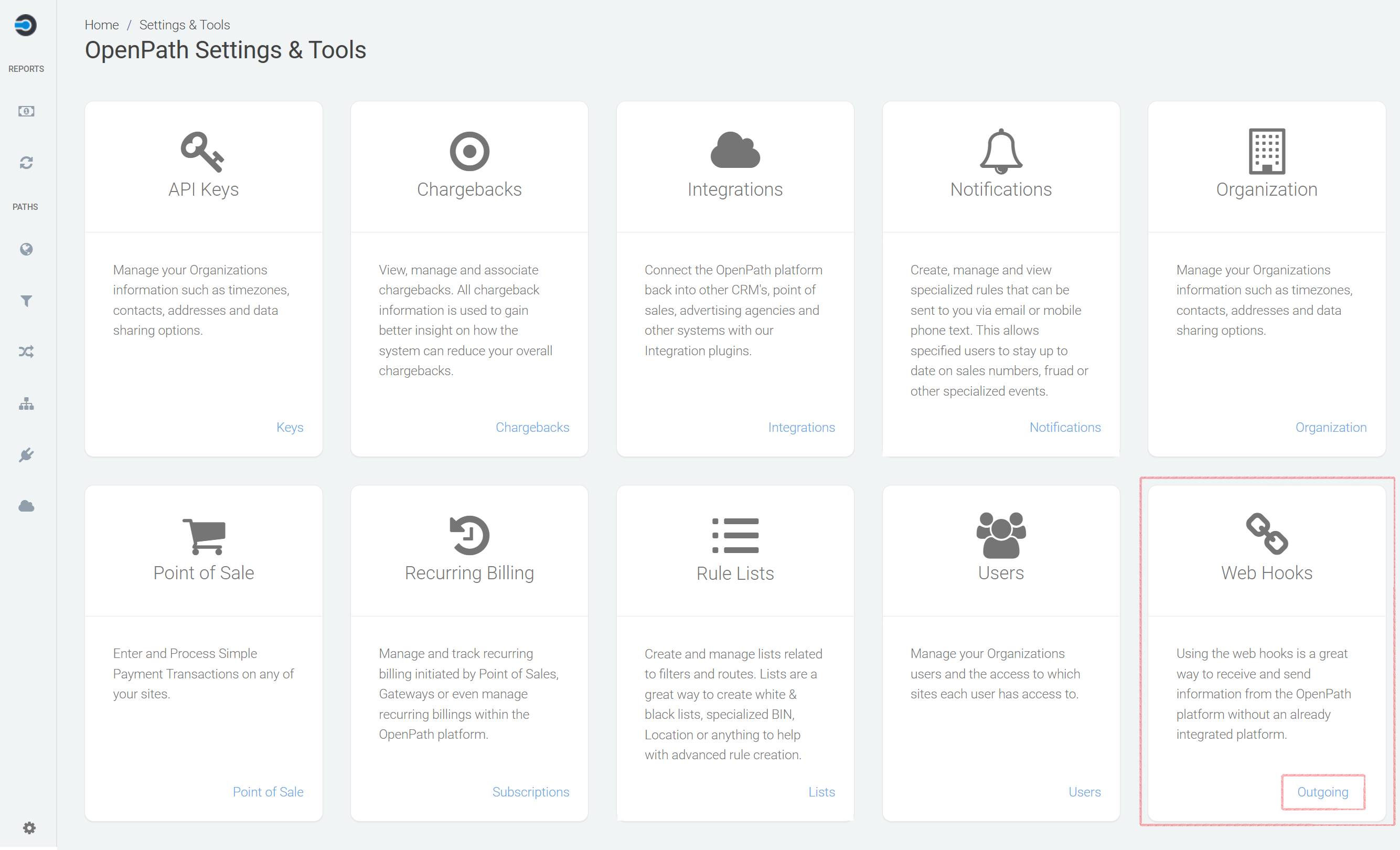
Step 3: Open Webhooks
On the Settings & Tools page, find the Web Hooks section.
Click Outgoing.
NoteYou can create one or multiple webhooks. Each webhook can point to a different endpoint and can be configured for one or more sites.
Create a separate webhook subscription for each endpoint you want OpenPath to send data to.
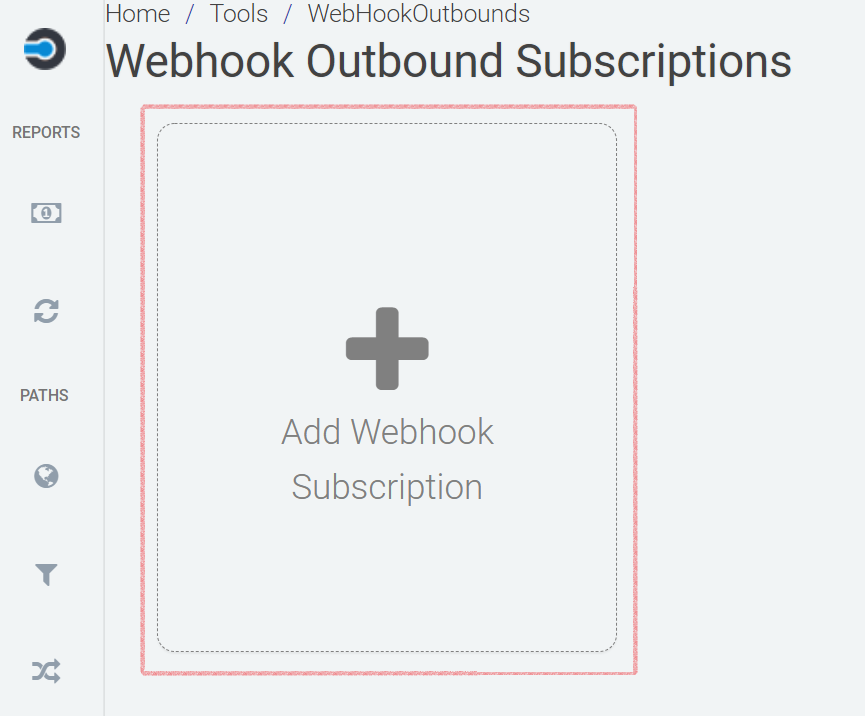
Step 4: Add a New Webhook Subscription
Click + Add Webhook Subscription.
Step 5: Configure Webhook Settings
On the Settings tab, enter the required webhook details.
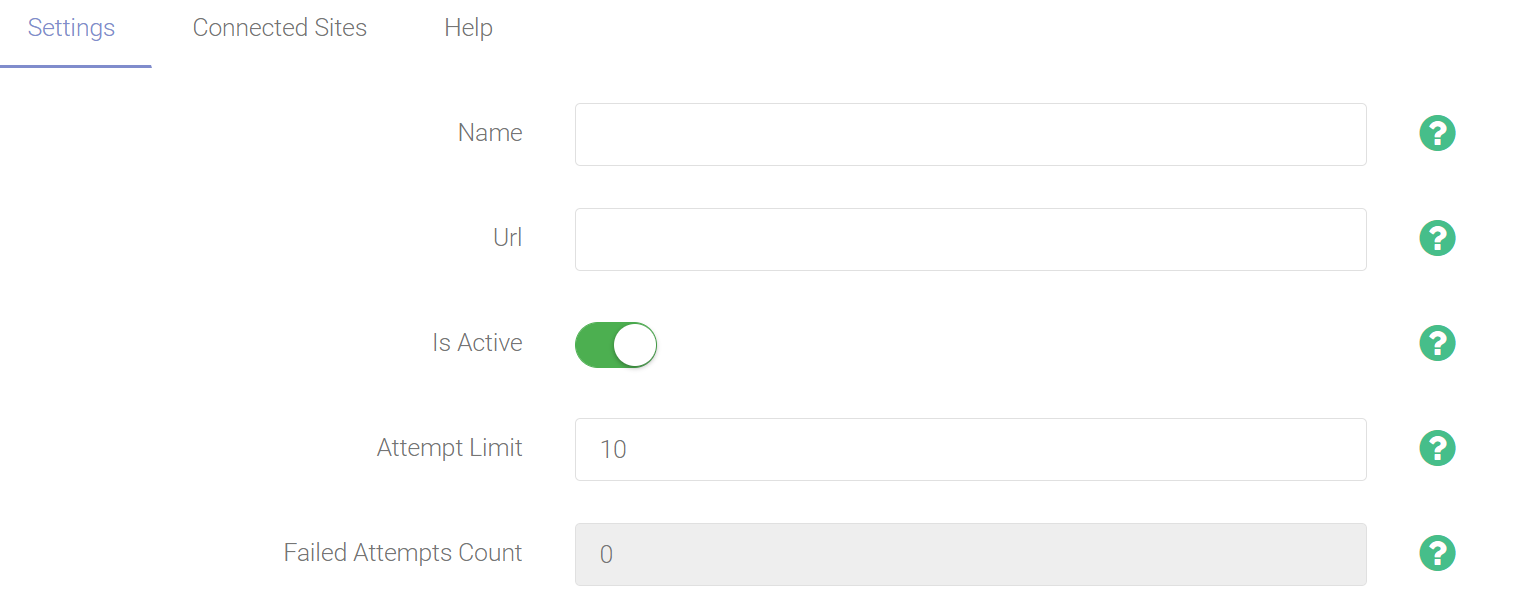
| Field | Description |
|---|---|
| Name | Internal name for the webhook. This is for your reference only. |
| URL | The endpoint where OpenPath will send the webhook payload. |
| Is Active | Enables or disables the webhook subscription. |
| Attempt Limit | The number of failed webhook delivery attempts allowed before the webhook is deactivated. |
| Failed Attempts Count | Displays the current number of failed attempts for this webhook. |
Testing TipIf your final endpoint is not ready yet, use Webhook.site to create a temporary receiving URL. Enter that URL in the URL field to test webhook delivery and inspect the payload.
Step 6: Connect Sites
After completing the Settings tab, select the Connected Sites tab.
You must assign at least one site to the webhook. Drag one or more sites from Available Sites to Assigned Sites.
Each site listed under Assigned Sites will trigger webhook events when transactions are processed through that site.
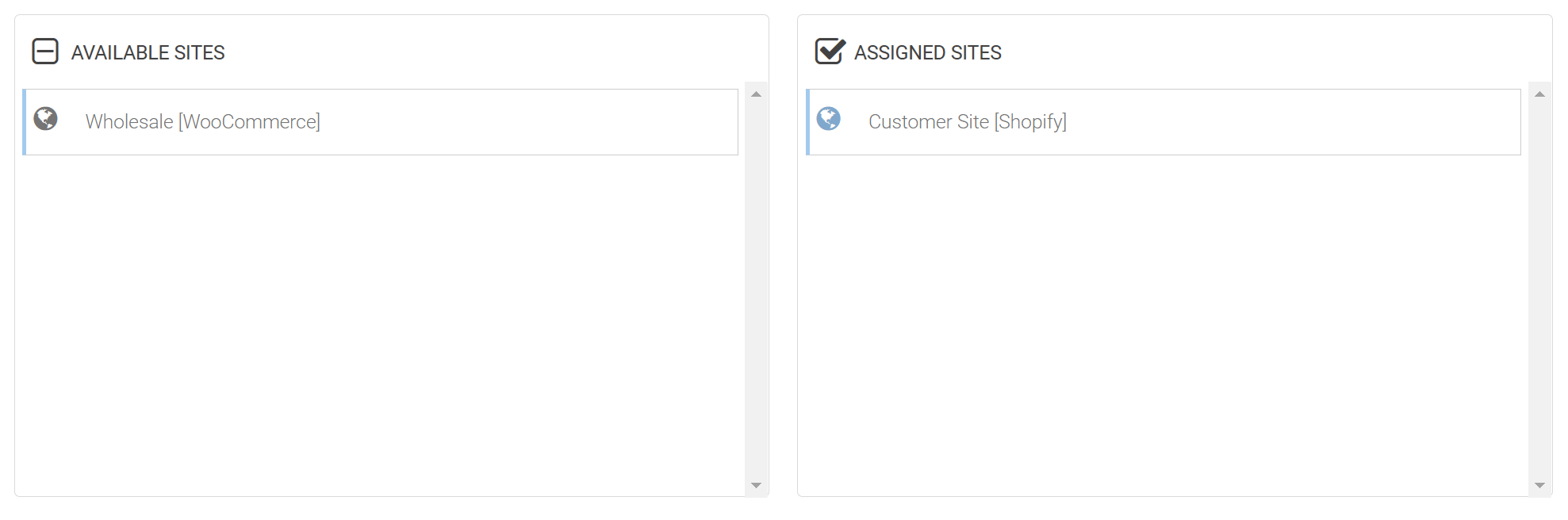
ImportantA webhook will not begin firing events until at least one site has been assigned.
Step 7: Save and Test
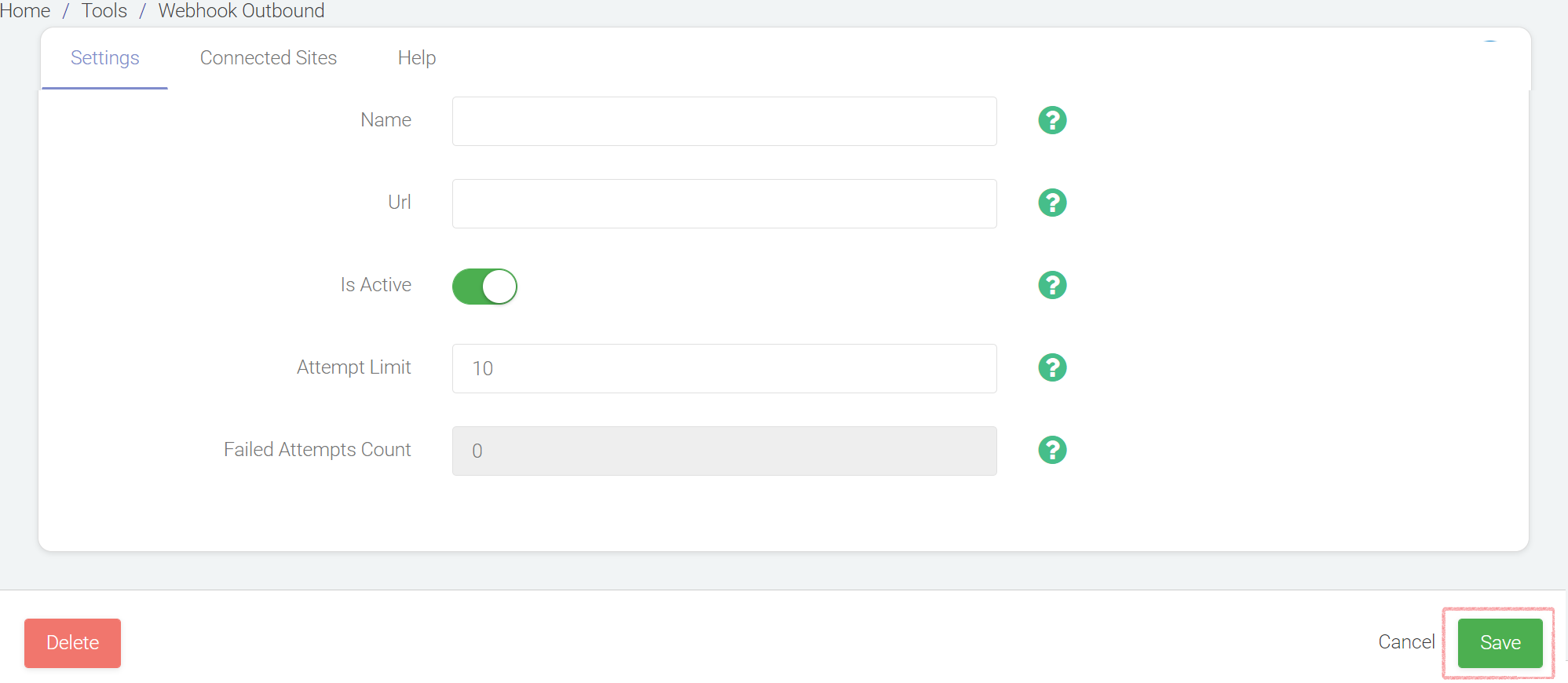
After completing the Settings and Connected Sites tabs, click Save.
Once saved, the webhook is ready to begin sending event data when transactions are processed through the assigned sites.
What Happens Next?
After the webhook is active and assigned to one or more sites, OpenPath will send JSON payloads to the configured URL when matching events occur.
Your application should be prepared to:
- Receive HTTP
POSTrequests from OpenPath. - Parse the JSON payload.
- Validate the request if your integration requires validation.
- Process the event data.
- Log webhook activity for troubleshooting.
Expected API Payload
For details about the webhook request body, response behavior, and expected transaction packet structure, review the OpenPath API documentation:
Transaction Packet Webhook API Reference
The API reference describes the outbound webhook payload OpenPath sends to the configured subscriber URL after a transaction packet is processed. OpenPath sends the payload as a JSON POST request, with the root transaction packet included in the packet object.
Your webhook endpoint should return a successful 2xx HTTP response after receiving and processing the payload. Non-2xx responses are treated as failed delivery attempts and may increase the webhook’s failed attempt count.
Troubleshooting Checklist
If your webhook is not firing or your application is not receiving data, check the following:
- Confirm the webhook is set to Is Active.
- Confirm at least one site is listed under Assigned Sites.
- Confirm the URL is publicly accessible from the internet.
- Confirm your endpoint accepts HTTP
POSTrequests. - Confirm your endpoint can process JSON payloads.
- Check the Failed Attempts Count field.
- Test with a temporary Webhook.site URL to confirm OpenPath is sending the payload.
- Use Postman,
curl, or ngrok to test and debug your receiving endpoint.
Updated 2 months ago