
Getting started and navigating the canvas
Open the beta safely, select sites and arrange your personal routing view.
Before you start
Path Designer is available to organization users where the beta feature has been enabled. Sign in to the Enterprise Portal and select the organization you intend to inspect. If Path Designer is missing from Paths, contact your organization administrator or OpenPath support about access and availability.
Use a non-production environment for initial testing. Designer can change the routing configuration used by payment traffic; it is not a sandbox just because it has a visual interface.
Open or leave the beta
- Choose Paths → Path Designer. The menu and heading have a Beta tag.
- Read the warning. The editor does not load until you acknowledge it.
- Check I understand that Path Designer is in beta and that using it may affect payment routing.
- Click OK to open the editor.
Choose Not now to leave without accepting. You return to the previous screen; a direct visit with no suitable previous screen returns to the dashboard. Escape and clicking the background do not dismiss the warning.
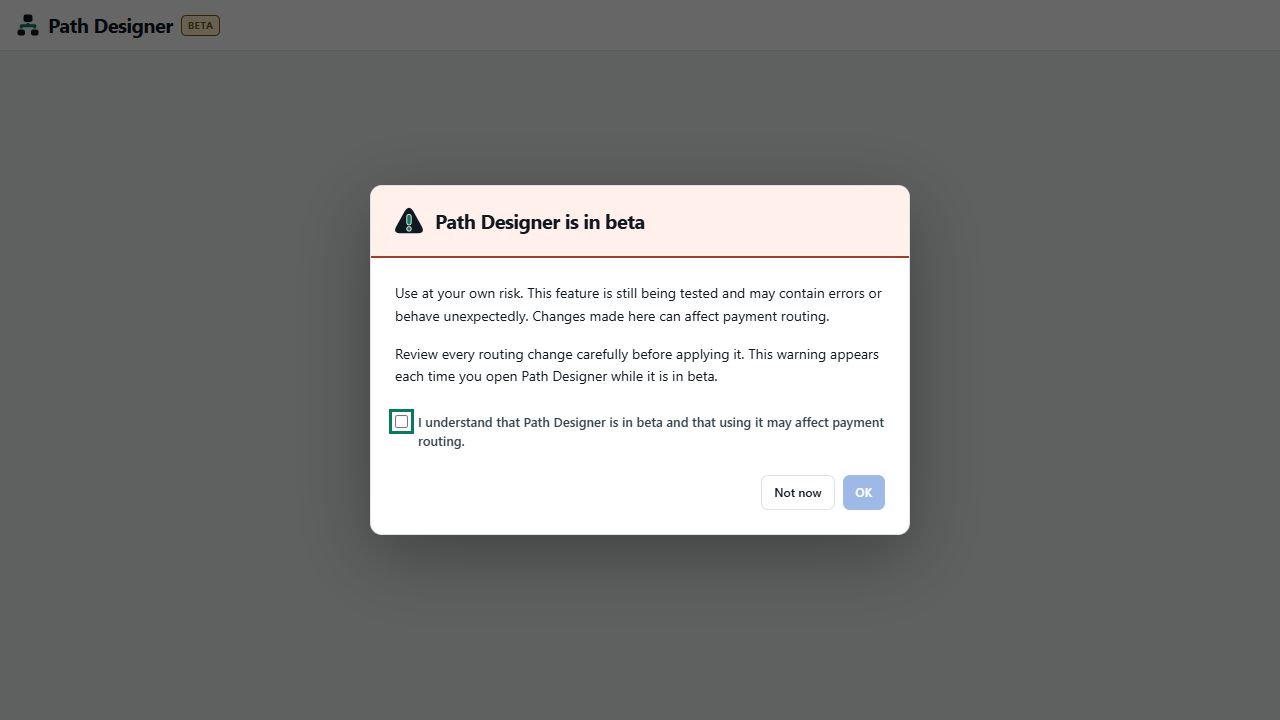
The warning returns on every visit, including reloads and returning through browser history. There is no Remember my choice option while the feature is in beta.
Read the screen
- The top toolbar contains the site selector, Fit, Library, Arrange, Undo, Redo and Discard.
- The canvas shows nodes and arrows. Sites initially align at the top, connectors at the bottom, and intermediate paths between them.
- The right panel shows the Site library when nothing is selected. Selecting a node opens its properties; selecting an arrow opens its connection details.
- The bottom bar shows Live configuration or the number of staged changes, plus Refresh and Review changes.
Select one or more sites
Open the site selector at the top left. It contains Select all, Unselect all, a divider and an alphabetical checkbox list.
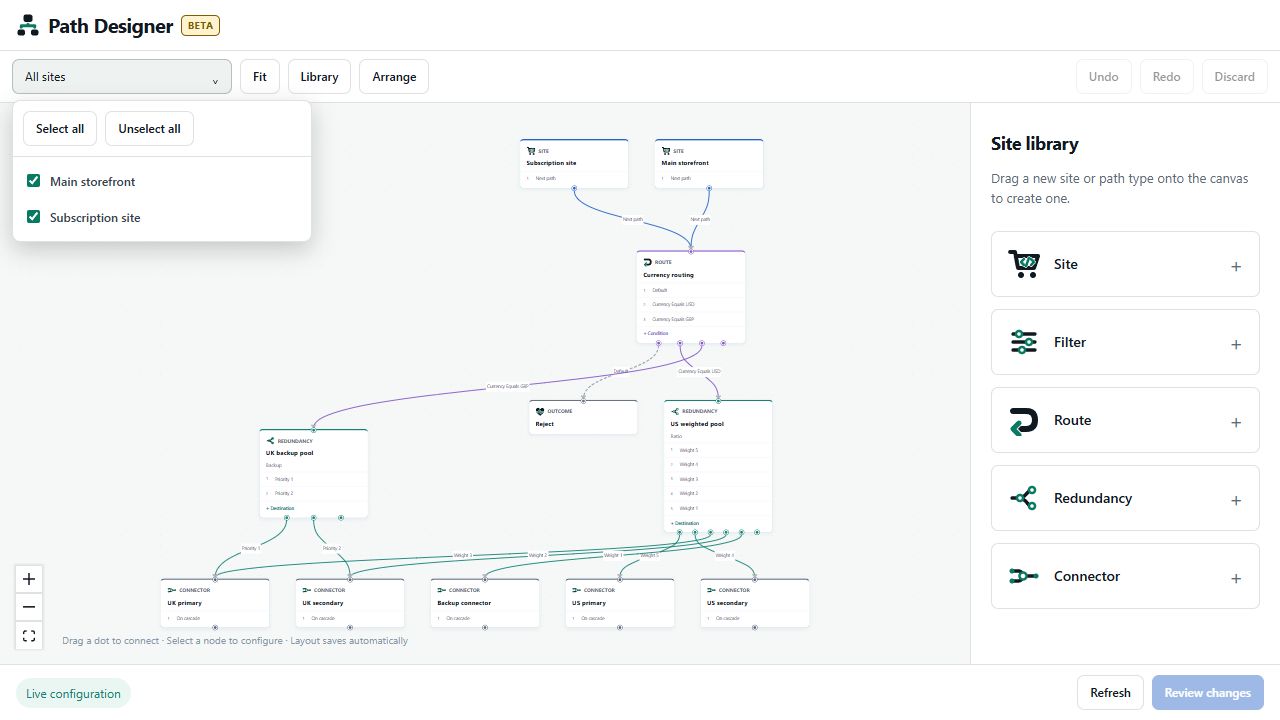
Check any combination of sites to show their combined downstream flows. Shared paths appear once. The selector displays a site name for one selection, a count for multiple selections or All sites.
All sites includes the whole organization graph, including disconnected paths and disconnected groups. When focusing on selected sites, all available connectors remain on the canvas so you can connect another one. New staged nodes also remain visible. Unselect all clears the site flows while retaining available connectors and new staged nodes.
Site selection changes the view only. It does not disable sites, change their routing or limit the effect of an eventual Apply.
Pan, zoom and fit
Drag an empty part of the canvas to pan. Use the lower-left + and − controls to zoom. Click Fit or the fit-view control to bring the displayed diagram into view. For a large organization, start with one or two sites so node names and connections are easier to read.
Click Library to hide or show the right panel. On smaller screens the panel may overlay the canvas.
Arrange and personalize
Arrange automatically aligns the displayed sites, intermediate paths and connectors. It changes node positions, not transaction routing.
After the initial arrangement, drag any node wherever you want—including above or below its original row. Your positions and viewport save automatically for your user and organization. Another user's layout is independent. In a focused view, Arrange preserves saved positions for paths outside that view.
Your layout is persistent; your unapplied routing draft is not. See Reviewing and applying changes.
Updated about 1 hour ago