
Reviewing and applying changes
Understand staged edits, immediate setup saves, shared-site impact and safe retry behavior.
Review shared-site impact before applyingSelecting one site changes only what you see. A shared route, filter, redundancy path or connector can be used by many other sites. Applying a change updates the shared configuration for every affected site.
Three different save behaviors
| Change | When it saves | What Discard does |
|---|---|---|
| Personal node positions and viewport | Automatically, for your user and organization | Does not roll back saved setup or routing configuration. Use Arrange or reposition nodes for layout changes. |
| Routing/properties edits and new Filter, Route or Redundancy nodes | After Review changes → Apply routing changes succeeds | Discards the unapplied routing draft. |
| Site/connector setup dialog changes | Immediately when that dialog is saved | Does not undo those setup saves. |
The bottom bar shows Live configuration when there are no staged routing changes. A staged-change count means the editor contains unapplied changes. It is a count of changed objects, not necessarily the number of mouse clicks or affected sites.
Review the draft
- Complete each changed object's settings, including newly created paths that are not yet attached to a site.
- Click Review changes.
- Inspect Changed paths and the before/after details.
- Read Affected sites, including sites outside the current canvas selection.
- Resolve errors and consider warnings.
- Choose Back to editing if anything needs correction.
- Click Apply routing changes only when the proposed configuration is correct.
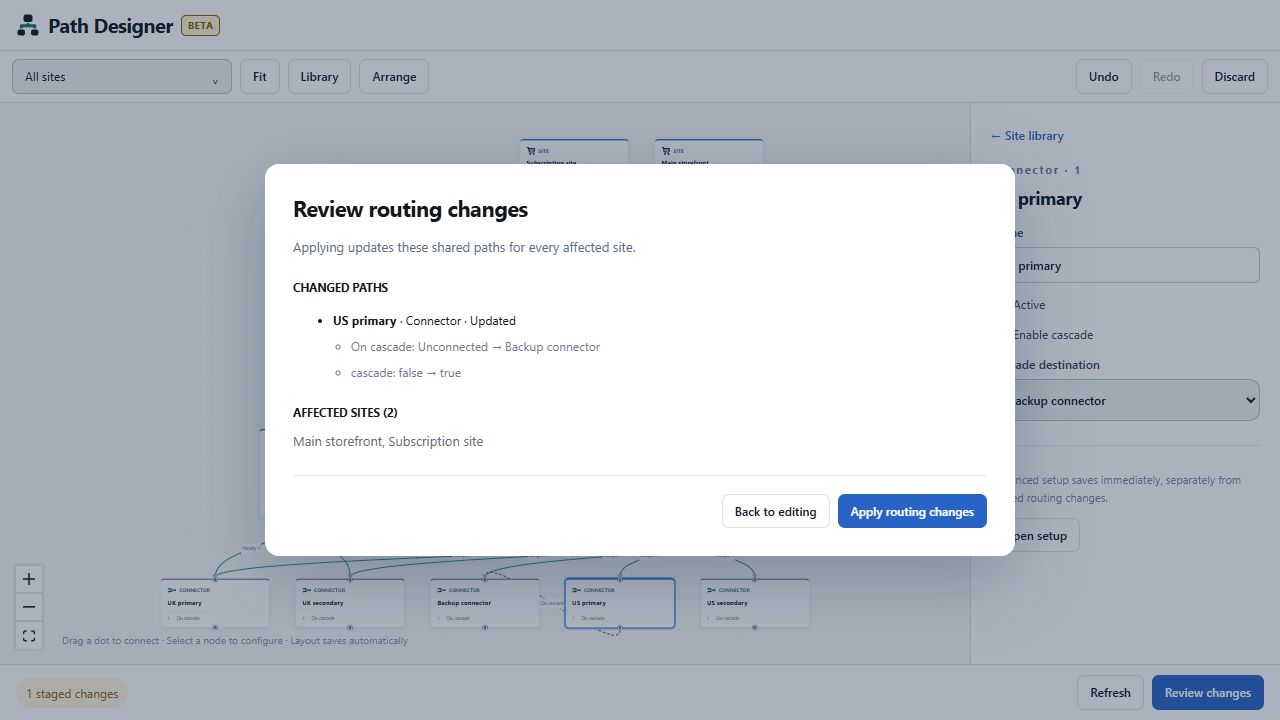
The example changes one shared connector and affects both Main storefront and Subscription site. A change to an unused path can show no existing affected sites; that does not remove the need to configure it correctly.
Validation
Review checks the proposed graph for problems such as loops, missing or inaccessible destinations, incomplete rules, invalid settings and incomplete new paths. Inactive objects can produce warnings. Error messages identify the relevant path so you can return to its properties and repair it.
Validation is a configuration check, not a payment-provider test. It does not prove that credentials, provider availability, limits or business rules will produce the intended result for every transaction.
After Apply succeeds, Designer reports Routing changes applied. The bottom bar returns to Live configuration, and new staged paths become saved objects. Configuration changes can affect subsequent processing; do not assume that applying a change reruns transactions already in flight.
Undo, Redo and Discard
Undo and Redo move through the editor's current change history. They are useful before Apply; they are not a production rollback system. A successful Apply clears the draft history. To reverse an already-applied routing change, make and review a new change.
Discard asks you to confirm discarding staged routing changes. Setup changes already saved from a site or connector dialog remain saved. Closing or reloading with unapplied edits warns that you may lose them. Personal layouts are saved automatically, but routing drafts are not durable saved drafts.
Refresh and concurrent changes
Refresh reloads configuration and attempts to preserve your staged edits. It can identify an overlap when someone else or a setup dialog changed the same object.
For each conflict, inspect the result before choosing Use server version or Keep my routing edits. Keeping your edits means deliberately proposing them over the refreshed object. Resolve conflicts and run Review again before applying. If the server version is stale at Apply time, refresh and review the current configuration rather than repeatedly submitting the old draft.
If Apply's result is uncertain
A connection failure can occur after the server has received an Apply request. Do not immediately recreate the same new objects or start another independent change. Keep the review open and retry the unchanged Apply routing changes request. The editor retains its request identity so a committed request can be recognized without creating duplicate paths.
While the outcome is uncertain, editing and Back to editing may be disabled. If the result cannot be resolved, retain the message and contact support before starting another apply attempt. See Troubleshooting.
Updated about 1 hour ago