
Routes and filters
Use conditional routes and filter checks to control where transactions go.
Routes choose destinations
A route evaluates configured conditions and sends the transaction to a matching destination. Its Default path handles traffic that does not match a condition. A destination may be another route, a filter, redundancy path, connector or supported terminal outcome.
- Select a route, or create one from the Site library.
- Give it a descriptive name, such as Currency routing.
- Set its Default path deliberately.
- Choose + Add rule, or connect the node's + Condition handle to a destination.
- Complete the rule's Field, Condition, Value, Scope and destination.
- Check the arrow label, then review the complete flow before applying.
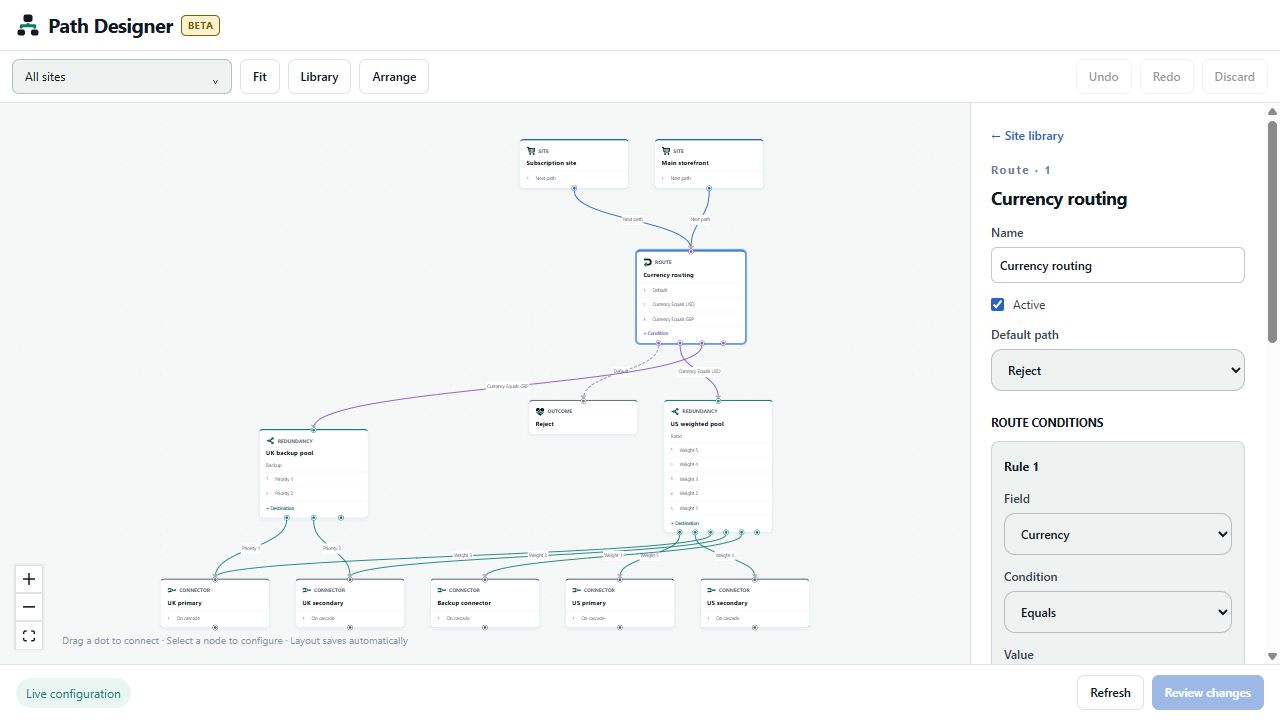
The fields and conditions offered by your organization determine the available comparisons. A route keeps the platform's existing evaluation behavior; Designer does not provide a rule-reordering control. Do not assume moving branches visually changes evaluation priority. Make overlapping rules unambiguous and test them.
Example: route by currency
Use currency codes as the value when the field is Currency:
| Field | Condition | Value | Example destination |
|---|---|---|---|
| Currency | Equals | USD | US weighted pool |
| Currency | Equals | GBP | UK backup pool |
The default can point to another configured path or an intentional terminal outcome. Do not leave unmatched traffic without a considered destination. US and GB are country codes, not the USD/GBP currency values in this example.
Choose Country only when the intended decision is based on country. The canvas labels the configured rule, for example Country Equals US.
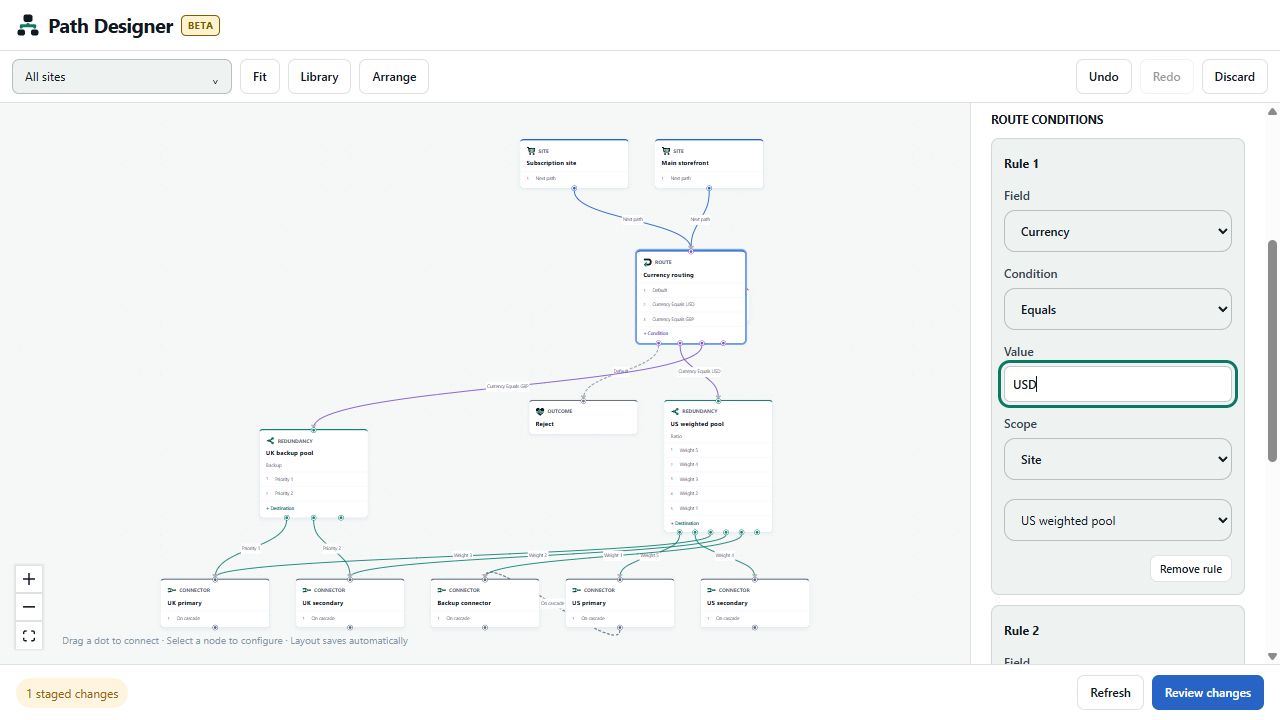
Scope
Rules offer Site, Organization and Global. Scope controls the context used by scope-aware checks; it is not a selector that limits which sites a shared-path edit affects. Choose the scope appropriate to the selected field and your policy.
New rules default to Global. Existing rules retain their saved scope, so the screenshot may show another value. Review existing settings rather than assuming that every rule is Global.
Filters check and reject traffic
A filter applies configured behavior checks and rejection rules, then passes eligible traffic to its Next path. It is different from a route: filter rules do not each have their own destination dropdown.
- Create or select a filter.
- Set its name, Active state and Next path.
- Enable only the behavior checks you intend to use.
- Add any filter rules and choose their matching method.
- Review and test the results before applying.
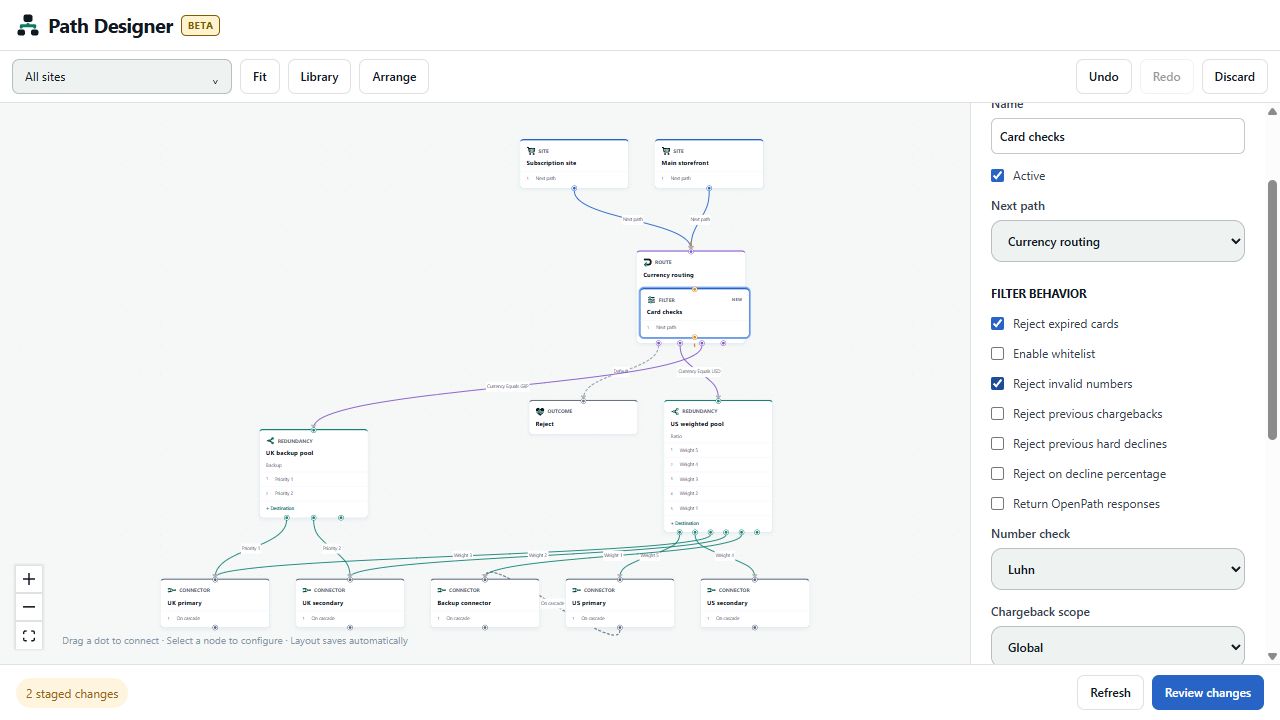
The properties include:
- Reject expired cards.
- Enable whitelist and a Whitelist selection.
- Reject invalid numbers, with Number check options such as Luhn.
- Reject previous chargebacks and Chargeback scope.
- Reject previous hard declines and Hard decline scope.
- Reject on decline percentage and Decline threshold (%).
- Return OpenPath responses.
New filters default chargeback and hard-decline scopes to Global. The presence of a setting in Designer does not provision a third-party service, populate a whitelist or change a provider's capabilities. Configure the underlying resources where required.
Filter rule matching
Choose + Add rule and set its Field, Condition, Value and Scope. The Match method determines how rule matches combine for rejection:
- Any: one matching rejection rule is enough.
- All: all configured rejection rules must match.
- Count: use Required matching rules to set the threshold.
These matching rules are in addition to the enabled filter behavior checks. Check the next path as well as the rejection criteria, and use meaningful values for the selected field.
Use Remove rule to stage removal of an unwanted rule. Removing a rule does not remove the filter itself.
Continue to Reviewing and applying changes.
Updated about 1 hour ago