
Adyen Connector Split Settlements
Configure Adyen TEST and map OpenPath recipient IDs to existing Adyen balance accounts.
Configure the Adyen sandbox connector
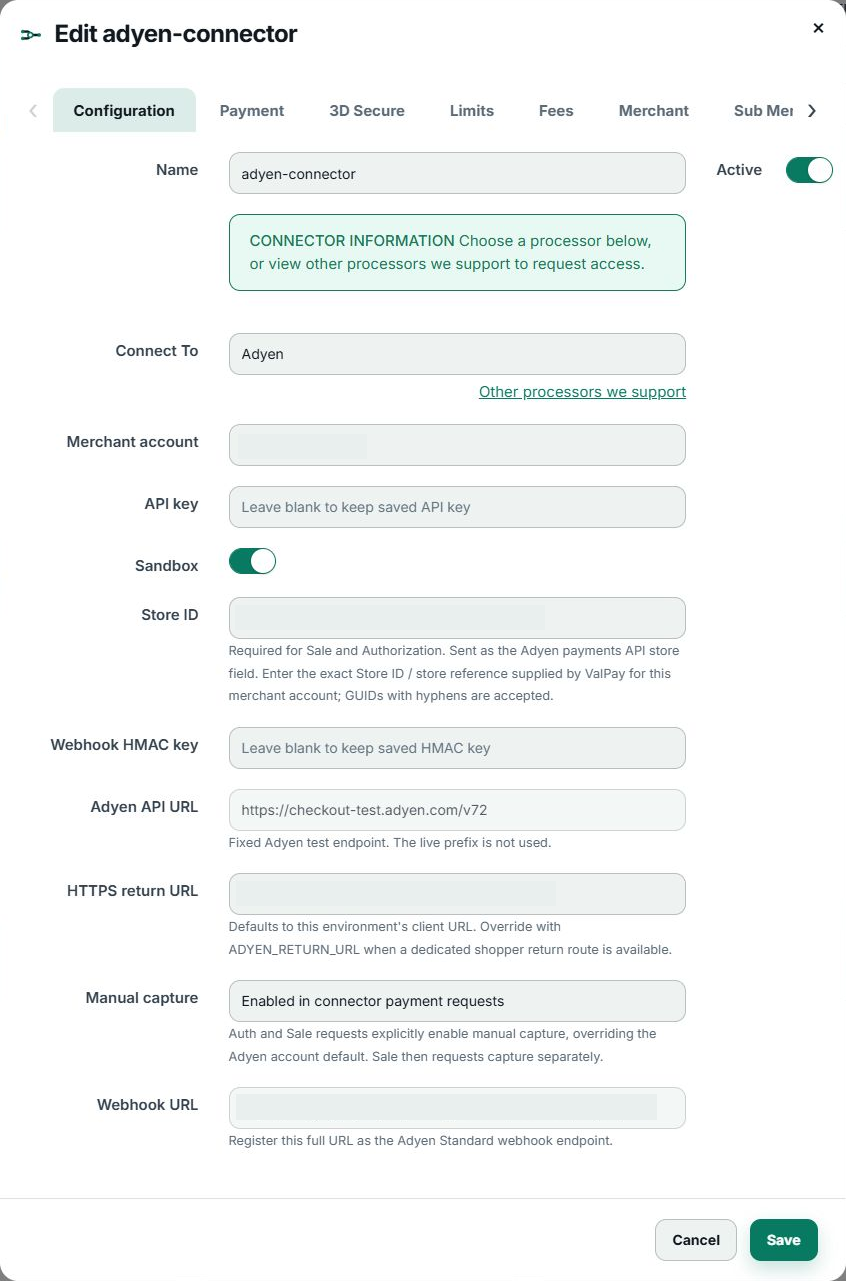
- In the Enterprise Portal, open Connectors and edit your Adyen connector. In Configuration, confirm Connect To is Adyen and Sandbox is on.
- Set the Adyen Merchant account, API key, and exact Store ID supplied for that merchant account. The Store ID is required for sale and authorization. Use test credentials and the test store.
- Register the connector's displayed Webhook URL in Adyen as a Standard webhook. Save the corresponding Webhook HMAC key in OpenPath so incoming Adyen events can be authenticated. Leave either secret field blank when editing to keep its saved value.
- Set the HTTPS return URL for your shopper flow. OpenPath requests manual capture from Adyen. A V5 sale requests capture after authorization, and the final capture result arrives asynchronously.
- Save the configuration. Confirm your V5 site routes the payment to this connector.
Adyen payment behavior
- The connector calls Adyen Checkout directly. Sale requests authorize and then request capture. Authorization-only requests leave capture to your application. Use a separate, stable idempotency key for each operation.
- The connector supports authorization, sale, capture, refund, and void of an uncaptured authorization. Increment is available for eligible unsplit pre-authorizations. The split pilot uses USD and supports one full capture and one full refund per payment.
- Capture and refund confirmations arrive through the Adyen Standard webhook. If a transaction stays pending, check the current V5 report result, then confirm the webhook URL and signing key are correct for the test merchant account.
- A payment that requires an interactive shopper challenge can remain pending for 3D Secure. Challenge completion, standalone card validation, and Adyen recurring payments are outside this connector workflow.
Map each OpenPath recipient to an Adyen balance account
- Create your recipients in Settings → Sub Merchants.
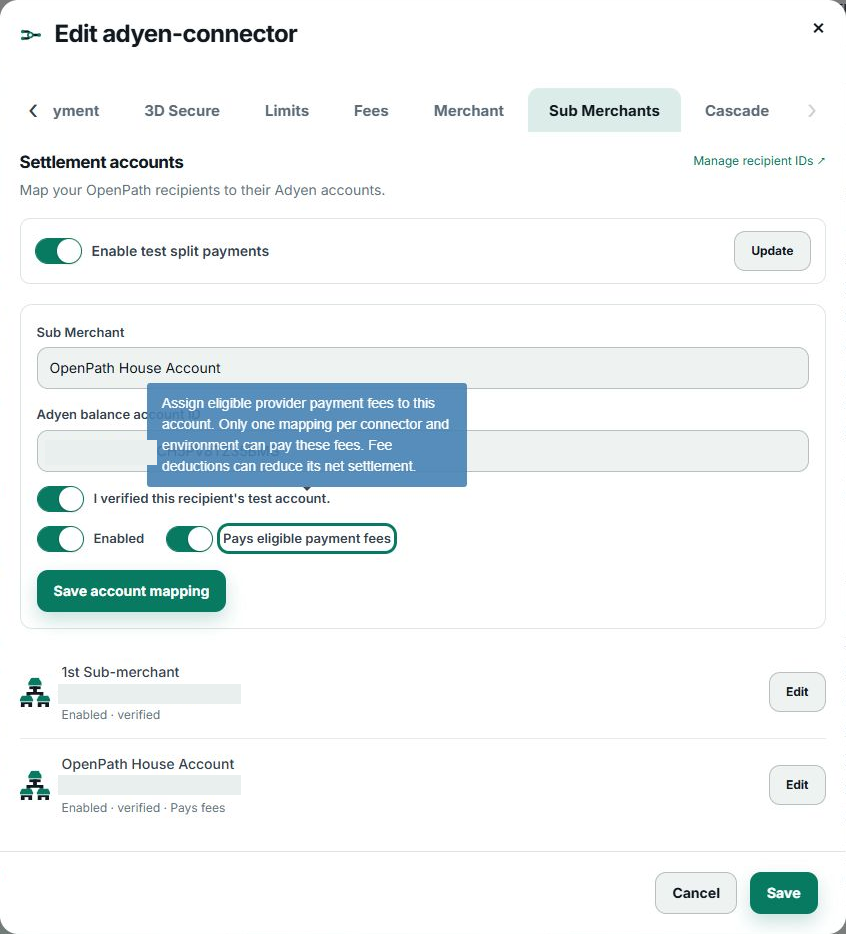
- Edit the sandbox connector and open Sub Merchants beside Cascade. Scroll the tab row to the right if needed.
- Select a Sub Merchant and enter the existing Adyen balance account ID for that recipient. The ID begins with
BA. The Adyen merchant account and Store ID belong in Configuration. - Verify in Adyen TEST that the balance account belongs to the recipient and can receive the split. Then turn on I verified this recipient’s test account and Enabled. This switch records your manual check. Editing the account ID clears the verification switch.
- If this is the house account that should cover eligible payment fees, turn on Pays eligible payment fees. One mapping per connector and environment can pay those fees. Fees can reduce that account's net settlement.
- Select Save account mapping. Repeat for each recipient. Each enabled mapping on the same connector and environment needs its own balance account, and the OpenPath recipient must also be enabled.
- Turn on Enable test split payments and select Update.
Verify a test payment
Submit a USD sandbox payment using the V5 split settlement guide. Check the current capture result in OpenPath and compare the gross split allocations to the expected balance accounts in Adyen. Use Adyen settlement and payout records to confirm actual movement of funds.
Updated about 2 hours ago
Did this page help you?